
Let’s Build a Website Like It’s 2002 (But Smarter) – Part 3: Contact Form & Processing
Categories
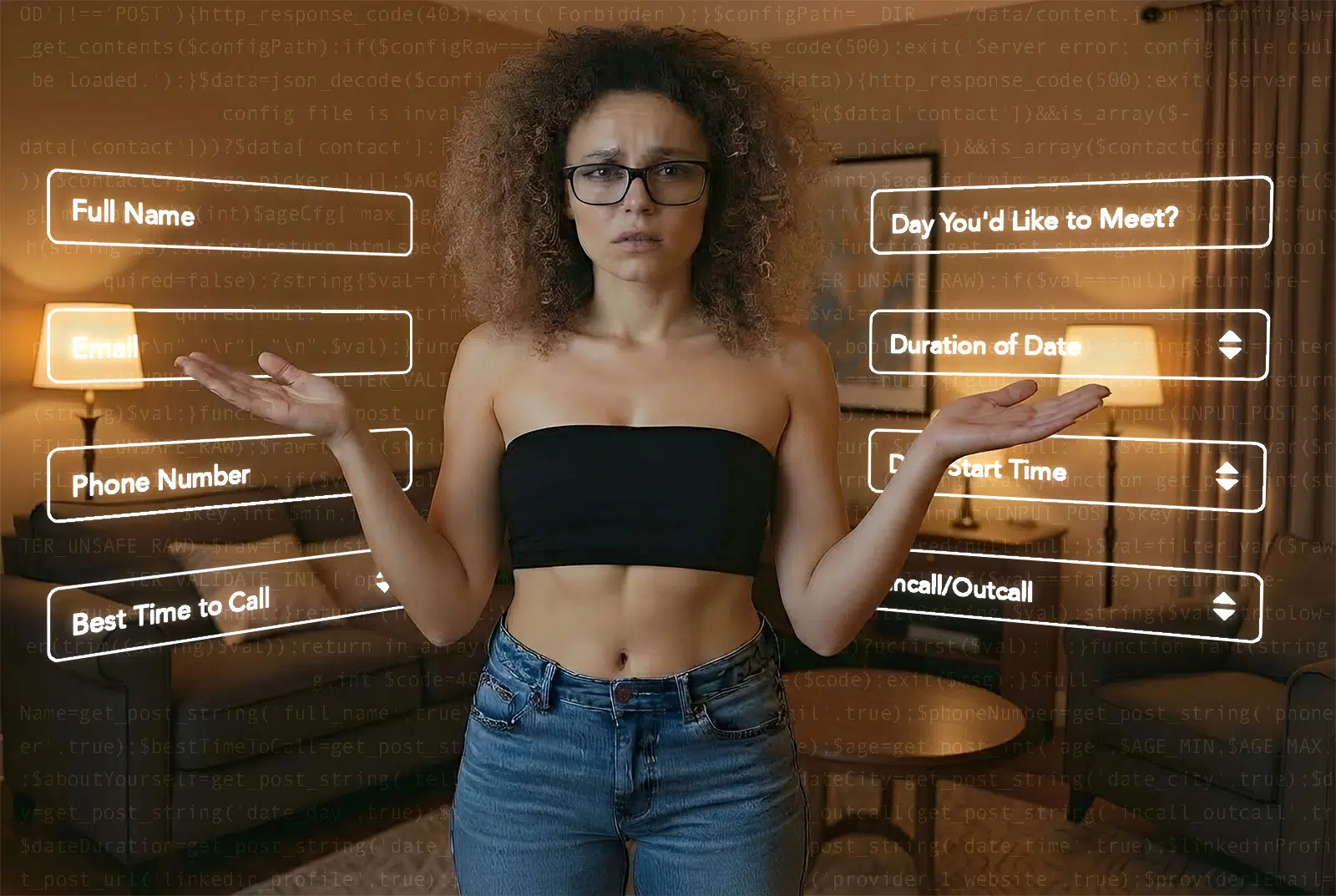
This is where we step outside the pattern we’ve used so far. We still pull in a small bit of data from JSON, but because HTML forms are so markup-heavy, it’s far more practical to write the form directly in the template. Could we define every field in JSON? Technically, yes – but that would add complexity just for the sake of saying we did it.
In this tutorial, we’ll start introducing some HTML structure that works hand-in-hand with CSS to shape and organize our form layout. We won’t go too deep just yet – we’ll really dig into this in Part 4, when we shift gears and start making the site look good.
We we’re capturing and how
After 27 years of working on provider websites, a clear pattern has emerged when it comes to contact forms. The fields below are a practical example of that pattern.
About You
- Full Name (
textfield) - Email (
emailfield) - Phone Number (
telfield) - Best Time to Call (
selectmenu) - Your Age (
numberfield) - Tell Me About Yourself (
textarea)
Date Details
- City Where You’d Like to Meet (
textfield) - Day You’d Like to Meet (
datefield) - Incall or Outcall? (
radiobuttons) - Duration of Date (
selectmenu – we populate this with data we’ve already set for the rates page) - Date Start Time (
selectmenu)
Screening
- LinkedIn Profile (
urlfield) - Providers Website & Email (
urlfields &emailfields
So we’re going to do a little layout in this html code as well as functionality. Keep in mind the second part of the tutorial with focus on styling the site.
Building the Form
Our full form code:
<?php

require __DIR__ . '/includes/functions.php';
$data = load_site_data(__DIR__ . '/data/content.json');


$pageName = 'contact';
$form  = $data['contact'] ?? [];
$rates = $data['rates'] ?? [];

include __DIR__ . '/includes/header.php';

?>

<section>
    <form action="#" method="post">
        <div class="form__section form__section--about-you">
            <h2>About You</h2>
            <!-- Full Name & Email -->
            <div class="hb-grid hb-grid--2 form__section-row">
                <div class="hb-grid__column">
                    <label for="full_name">
                        <span class="form__section-field-label"><strong>Full Name<sup>*</sup></strong></span>
                        <input type="text" name="full_name" id="full_name" required>
                    </label>
                </div>
                <div class="hb-grid__column">
                    <label for="email">
                        <span class="form__section-field-label"><strong>Email<sup>*</sup></strong></span>
                        <input type="email" name="email" id="email" required>
                    </label>
                </div>
            </div>
            <!-- Phone Number & Email -->
            <div class="hb-grid hb-grid--3 form__section-row">
                <div class="hb-grid__column">
                    <label for="phone_number">
                        <span class="form__section-field-label"><strong>Phone Number<sup>*</sup></strong></span>
                        <input type="tel" name="phone_number" id="phone_number" required>
                    </label>
                </div>
                <div class="hb-grid__column">
                    <label for="best_time_to_call">
                        <span class="form__section-field-label"><strong>Best Time to Call<sup>*</sup></strong></span>
                        <select name="best_time_to_call" id="best_time_to_call">
                            <option value="">Select...</option>
                            <option value="morning">Morning</option>
                            <option value="afternoon">Afternoon</option>
                            <option value="evening">Evening</option>
                        </select>
                    </label>
                </div>
                <div class="hb-grid__column">
                    <label for="age">
                        <span class="form__section-field-label"><strong>Your Age<sup>*</sup></strong></span>
                        <input type="number" name="age" id="age" min="18" max="100" required>
                    </label>
                </div>
            </div>
            <!-- Tell Me About Yourself -->
            <div class="hb-grid hb-grid--12 form__section-row">
                <div class="hb-grid__column hb-grid__col-span--full">
                    <label for="tell_me_about_yourself">
                        <span class="form__section-field-label"><strong>Tell Me About Yourself</strong></span>
                        <textarea name="tell_me_about_yourself" rows="3" id="tell_me_about_yourself"></textarea>
                    </label>
                </div>
            </div>
        </div>
        <div class="form__section form__section--date-details">
            <h2>Date Details</h2>
            <!-- City & Date -->
            <div class="hb-grid hb-grid--3 form__section-row">
                <div class="hb-grid__column">
                    <label for="date_city">
                        <span class="form__section-field-label"><strong>City Where You'd Like to
                                Meet<sup>*</sup></strong></span>
                        <input type="text" name="date_city" id="date_city" required>
                    </label>
                </div>
                <div class="hb-grid__column">
                    <label for="date_day">
                        <span class="form__section-field-label"><strong>Day You'd Like to
                                Meet<sup>*</sup></strong></span>
                        <input type="date" name="date_day" id="date_day" required>
                    </label>
                </div>
                <div class="hb-grid__column">
                    <span class="form__section-field-label"><strong>Incall or Outcall?<sup>*</sup></strong></span>
                    <div class="form__section-field-radio-container">
                        <label><input type="radio" name="incall_outcall" value="incall" required> Incall</label>
                        <label><input type="radio" name="incall_outcall" value="outcall" required> Outcall</label>

                    </div>

                </div>
            </div>
            <!-- Duration of Date & Date Start Time -->
            <div class="hb-grid hb-grid--2 form__section-row">
                <div class="hb-grid__column">
                    <?php
$offerings = (!empty($rates['offerings']) && is_array($rates['offerings'])) ? $rates['offerings']: []; ?>
                    <label for="date_duration">
                        <span class="form__section-field-label">Duration of Date<sup>*</sup></span>
                        <select name="date_duration" id="date_duration" required>
                            <option value="">Select...</option>
                            <?php foreach ($offerings as $o): ?>
                            <?php
$duration = $o['duration'] ?? '';
$value    = slugify($duration);
?>
                            <option value="<?php echo e($value); ?>">
                                <?php echo e($duration); ?>
                            </option>
                            <?php endforeach; ?>
                        </select>
                    </label>
                </div>
                <div class="hb-grid__column">
                    <label for="date_time">
                        <span class="form__section-field-label">Date Start Time<sup>*</sup></span>
                        <select name="date_time" id="date_time" required>
                            <option value="">Select...</option>

                            <?php
// -----------------------------------------
// Pull time config from JSON (with fallbacks)
// -----------------------------------------
$timeCfg = (isset($form['time_picker']) && is_array($form['time_picker']))
? $form['time_picker']
: [];

$startStr    = $timeCfg['start'] ?? '10:00 AM';
$endStr      = $timeCfg['end'] ?? '11:30 PM';
$stepMinutes = isset($timeCfg['step_minutes']) ? (int)$timeCfg['step_minutes'] : 30;

// Safety: prevent zero/negative steps
if ($stepMinutes < 1) $stepMinutes = 30;

// Build DateTime / DateInterval
$start = DateTime::createFromFormat('g:i A', $startStr) ?: new DateTime('10:00 AM');
$end   = DateTime::createFromFormat('g:i A', $endStr)   ?: new DateTime('11:30 PM');
$step  = new DateInterval('PT' . $stepMinutes . 'M');

// If someone configures an end earlier than the start, fall back safely
if ($end < $start) {
$start = new DateTime('10:00 AM');
$end   = new DateTime('11:30 PM');
}

// Generate options
for ($time = clone $start; $time <= $end; $time->add($step)) {
$label = $time->format('g:i A');
echo '<option value="' . e($label) . '">' . e($label) . '</option>';
}
?>
                        </select>
                    </label>


                </div>
            </div>
        </div>
        <!-- SCREENING -->
        <div class="form__section form__section--screening">
            <h2>Screening</h2>
            <p>For screening purposes, please choose and complete one of the two options below.</p>
            <div class="hb-grid hb-grid--12 form__section-row">
                <div class="hb-grid__column hb-grid__col-span--full">
                    <label for="linkedin_profile">
                        <span class="form__section-field-label"><strong>Your LinkedIn Profile</strong></span>
                        <input type="url" placeholder="https://" name="linkedin_profile" id="linkedin_profile">
                    </label>
                </div>
                <div class="hb-grid__column hb-grid__col-span--full">

                    <span class="form__section-field-label"><strong>Providers Website & Email</strong></span>

                    <div class="hb-grid hb-grid--2 form__section-row">
                        <div class="hb-grid__column">
                            <label for="provider_1_website">
                                <span class="form__section-field-label"><em>Provider 1 Website</em></span>
                                <input type="url" placeholder="https://" name="provider_1_website"
                                    id="provider_1_website">
                            </label>
                        </div>
                        <div class="hb-grid__column">
                            <label for="provider_1_email">
                                <span class="form__section-field-label"><em>Provider 1 Email</em></span>
                                <input type="email" name="provider_1_email" id="provider_1_email">
                            </label>
                        </div>
                    </div>

                    <div class="hb-grid hb-grid--2 form__section-row">
                        <div class="hb-grid__column">
                            <label for="provider_2_website">
                                <span class="form__section-field-label"><em>Provider 2 Website</em></span>
                                <input type="url" placeholder="https://" name="provider_2_website"
                                    id="provider_2_website">
                            </label>
                        </div>
                        <div class="hb-grid__column">
                            <label for="provider_2_email">
                                <span class="form__section-field-label"><em>Provider 2 Email</em></span>
                                <input type="email" name="provider_2_email" id="provider_2_email">
                            </label>
                        </div>
                    </div>
                </div>
            </div>
        </div>
        </div>
        <div class="form__section form__section--screening">
            <div class="hb-grid hb-grid--12 form__section-row">
                <div class="hb-grid__column hb-grid__col-span--full">
                    <button type="submit" class="form__submit">
                        <span class="form__submit-text">Submit</span>
                        <span class="form__submit-spinner" aria-hidden="true"></span>
                    </button>
                </div>
            </div>
        </div>
    </form>
</section>

<?php include __DIR__ . '/includes/footer.php'; ?>
What this page is responsible for
This is the Contact / Booking Request page template. Its job is to:
- Pull the pieces of data this form needs (
contactconfig +ratesofferings) - Output a structured HTML form
- Dynamically populate select dropdowns (duration + time options)
- Submit the form to a separate processing script (
form-processing.php)
1) Page context + pulling the form-related data
$pageName = 'contact';
$form  = $data['contact'] ?? [];
$rates = $data['rates'] ?? [];

include __DIR__ . '/includes/header.php';
$pageName = 'contact'identifies the current page for your shared layout (often used for active nav states or page-level settings).$form = $data['contact'] ?? []pulls the contact-page config (like yourtime_pickersettings later).$rates = $data['rates'] ?? []pulls the rates section so you can reuse offerings as dropdown options.- Then you include the shared header, which prints the top of the document and navigation.
The ?? [] fallback is defensive: if the JSON key is missing, the page still loads without notices.
2) The form: where data goes and how it’s submitted
<form action="form-processing.php" method="post">
action="form-processing.php"means when the user submits, the browser sends the data to that PHP file.method="post"sends form values in the request body (better for privacy than GET, and required for larger payloads).
In your architecture: this template displays the form; form-processing.php handles validation, sanitization, emailing/saving, etc.
3) “About You” section

Full Name + Email
<div class="hb-grid hb-grid--2 form__section-row">
 <div class="hb-grid__column">
  <label for="full_name">
   <span class="form__section-field-label"><strong>Full Name</strong></span>
   <input type="text" name="full_name" id="full_name" required>
  </label>
</div>
<div class="hb-grid__column">
  <label for="email">
   <span class="form__section-field-label"><strong>Email</strong></span>
   <input type="email" name="email" id="email" required>
  </label>
</div>
</div>
- To get Full Name and Email to sit side by side, we lean on a mix of HTML structure and CSS layout (we’ll dig into the CSS part in the next tutorial).
- First, we wrap the entire row in
.hb-grid--2.form__section-row. This tells our layout system to create a two-column row. - Inside that row, each form field is wrapped in a
.hb-grid__columndiv. Each column becomes one slot in the grid, allowing the fields to align neatly next to each other. - Each input is wrapped in a
<label>. The text inside the label explains what the field is for, and thefor="..."value must match theidof the input it’s associated with. This connection is important for accessibility – clicking the label focuses the input, and screen readers understand the relationship. - The
name="..."attribute is the key that will be sent along with the form submission and show up in$_POSTon the processing page. - The
id="..."attribute links the input back to its label and also gives us a reliable hook for CSS or JavaScript if we need it later. - Adding
requiredenables basic browser-level validation, preventing the form from being submitted if the field is left empty. - Finally, using
type="email"gives us two bonuses for free: built-in email validation and a more convenient keyboard layout on mobile devices.
Purpose: collect who the person is and how to reply.
Phone Number + Best Time to Call + Age
<div class="hb-grid hb-grid--3 form__section-row">
 <div class="hb-grid__column">
  <label for="phone_number">
   <span class="form__section-field-label"><strong>Phone Number</strong></span>
   <input type="tel" name="phone_number" id="phone_number" required>
  </label>
 </div>
 <div class="hb-grid__column">
  <label for="best_time_to_call">
   <span class="form__section-field-label"><strong>Best Time to Call<sup>*</sup></strong></span>
    <select name="best_time_to_call" id="best_time_to_call">
     <option value="">Select...</option>
     <option value="morning">Morning</option>
     <option value="afternoon">Afternoon</option>
     <option value="evening">Evening</option>
    </select>
   </label>
 </div>
 <div class="hb-grid__column">
  <label for="age">
   <span class="form__section-field-label"><strong>Your Age</strong></span>
   <input type="number" name="age" id="age" min="18" max="100" required>
  </label>
 </div>
</div>
- We’ll use
.hb-grid--3to create a 3-column layout for these fields. type="tel"hints “phone keypad” on mobile; validation is usually loose (you validate server-side).- “Best time to call” is plain text, giving the user flexibility (e.g., “weekday evenings”).
- Age uses numeric bounds (
min="18") which supports your eligibility requirement at the browser level.
Purpose: faster coordination + screening baseline.
“Tell me about yourself” textarea
<div class="hb-grid hb-grid--12 form__section-row">
 <div class="hb-grid__column hb-grid__col-span--full">
  <label for="tell_me_about_yourself">
   <span class="form__section-field-label"><strong>Tell Me About Yourself</strong></span>
   <textarea name="tell_me_about_yourself" rows="3" id="tell_me_about_yourself"></textarea>
  </label>
 </div>
</div>
- We’ll use
.hb-grid--12and.hb-grid__col-span--fullto achieve a full width layout for this field - A multi-line text field for context.
- Not marked
required, so it’s optional.
Purpose: gives the provider a quick vibe check / context before replying.
4) “Date Details” section: logistics of the request

City + Day
<div class="hb-grid__column">
 <label for="date_city">
  <span class="form__section-field-label"><strong>City Where You'd Like to Meet</strong></span>
   <input type="text" name="date_city" id="date_city" required>
  </label>
</div>
<div class="hb-grid__column">
 <label for="date_day">
  <span class="form__section-field-label"><strong>Day You'd Like to Meet</strong></span>
   <input type="date" name="date_day" id="date_day" required>
  </label>
</div>
- City is plain text.
type="date"uses a native date picker in most browsers.
Purpose: where and when.
Incall vs Outcall (radio buttons)
<div class="hb-grid__column">
 <span class="form__section-field-label"><strong>Incall or Outcall?</strong></span>
 <div class="form__section-field-radio-container">
  <label><input type="radio" name="incall_outcall" value="incall" required> Incall</label>
  <label><input type="radio" name="incall_outcall" value="outcall" required> Outcall</label>
 </div>
</div>
- Radio buttons share the same
name, so only one can be selected. requiredensures they pick one option.
Purpose: clarifies the type of meeting request.
5) Dynamic dropdown: “Duration of Date” pulled from JSON rates

This part genuinely makes me happy. Earlier, I mentioned the importance of not repeating yourself in your code – and this is a perfect example of that in action. Instead of hard-coding values, we’re pulling the duration directly from our rates page data.
$offerings = (!empty($rates['offerings']) && is_array($rates['offerings'])) ? $rates['offerings'] : [];
- Safely extracts the
offeringsarray from the rates section. - Falls back to an empty array if missing or malformed.
Then the select:
<select name="date_duration" id="date_duration" required>
  <option value="">Select...</option>
  <?php foreach ($offerings as $o): ?>
    <?php
      $duration = $o['duration'] ?? '';
      $value    = slugify($duration);
    ?>
    <option value="<?php echo e($value); ?>">
      <?php echo e($duration); ?>
    </option>
  <?php endforeach; ?>
</select>
What’s happening here:
- You loop through each offering from JSON.
$durationis the human-readable label (“2 hours”, “Dinner date”, etc.).slugify($duration)turns that label into a clean value suitable for form submission (e.g.,"2-hours").e()escapes output for safety.
Purpose: you avoid duplicating “duration options” in multiple places. The Rates page and Contact form stay in sync automatically.
6) Dynamic dropdown: “Date Start Time” generated from JSON config

You might remember that we added data nodes in content.json for things like available times and age range. That’s on purpose – those are the kinds of details that change, and no one wants a client poking around in a scary HTML form. Update the JSON once and you’re done.
Example from our JSON
"time_picker": {
      "start": "10:00 AM",
      "end": "11:30 PM",
      "step_minutes": 30
    }
Pull the time picker configuration from $form:
$timeCfg = (isset($form['time_picker']) && is_array($form['time_picker']))
  ? $form['time_picker']
  : [];

$startStr    = $timeCfg['start'] ?? '10:00 AM';
$endStr      = $timeCfg['end'] ?? '11:30 PM';
$stepMinutes = isset($timeCfg['step_minutes']) ? (int)$timeCfg['step_minutes'] : 30;
- If
contact.time_pickerexists in JSON, use it. - Otherwise default to 10:00 AM → 11:30 PM in 30-minute steps.
Then it hardens the config:
if ($stepMinutes < 1) $stepMinutes = 30;
- Prevents broken configs like 0-minute steps.
Then it creates time objects:
$start = DateTime::createFromFormat('g:i A', $startStr) ?: new DateTime('10:00 AM');
$end   = DateTime::createFromFormat('g:i A', $endStr)   ?: new DateTime('11:30 PM');
$step  = new DateInterval('PT' . $stepMinutes . 'M');
- Builds
DateTimeobjects for start/end. - Builds a
DateIntervallikePT30M.
Safety check if end < start:
if ($end < $start) {
  $start = new DateTime('10:00 AM');
  $end   = new DateTime('11:30 PM');
}
Finally, it generates <option> tags in a loop:
for ($time = clone $start; $time <= $end; $time->add($step)) {
  $label = $time->format('g:i A');
  echo '<option value="' . e($label) . '">' . e($label) . '</option>';
}
- Starts at
$start, adds$stepeach iteration, stops at$end. - Produces a list like:
10:00 AM,10:30 AM,11:00 AM, etc. - Uses
e()to escape the label.
Purpose: the dropdown updates automatically when you change the JSON config – no template edits needed.
7) Screening section
This part collects references to help verify the request.
LinkedIn profile

<input type="url" placeholder="https://" name="linkedin_profile" id="linkedin_profile">
type="url"provides browser-level URL validation.- Placeholder suggests the expected format.
Provider references (two providers)

Each provider collects:
<input type="url" name="provider_1_website">
<input type="email" name="provider_1_email">
…and repeats for provider 2.
8) Submit button

<button type="submit" class="form__submit">
  <span class="form__submit-text">Submit</span>
  <span class="form__submit-spinner" aria-hidden="true"></span>
</button>
type="submit"triggers form submission.- The spinner
spanallows us a loading state (via CSS/JS) when the user clicks the button. aria-hidden="true"prevents screen readers from announcing the spinner decoration.
Big picture pattern this file demonstrates
This page is a great example of your “JSON-driven site” approach:
- Content and configuration live in
content.json - Templates pull a section of
$dataand render it - Dropdowns are generated from JSON so they stay in sync
- Helper functions (
e(),slugify(),safe_rich_html()) keep output safe and consistent - The processing logic is separated into
form-processing.php
Processing the Form Data
Now that our form is capturing the information we need, the next step is making sure it actually goes somewhere useful. This is where PHP comes back into the picture – handling the form submission behind the scenes and delivering the data to the site owner’s inbox quickly and seamlessly.
What this file is for
form-processing.php is meant to be the action target for your HTML form. When the user submits the form, the browser sends a POST request to this file, and the file:
- Rejects non-POST requests (blocks direct visits)
- Loads config from JSON (age min/max)
- Safely reads and validates form fields
- Builds a plain-text email
- Sends the email
- Redirects to a thank-you page (or shows an error)
1) Strict typing + header comment
declare(strict_types=1);
This makes PHP stricter about type conversions. It helps catch bugs earlier (like accidentally passing arrays where strings are expected).
2) Block direct access (must be POST)
if ($_SERVER['REQUEST_METHOD'] !== 'POST') {
  http_response_code(403);
  exit('Forbidden');
}
If someone tries to visit form-processing.php in the browser directly (a GET request), this exits immediately with a 403 Forbidden.
This is good practice: form processors shouldn’t be publicly “browsable.”
2) Load JSON config for rules (age min/max)
$configPath = __DIR__ . '/data/content.json';
$configRaw  = @file_get_contents($configPath);
__DIR__= the directory this PHP file lives in.- It reads
data/content.json. - The
@suppresses PHP warnings (you handle failure manually right after).
If it can’t read the file:
http_response_code(500);
exit('Server error: config file could not be loaded.');
That’s a server-side problem (500).
Then it decodes JSON:
$data = json_decode($configRaw, true);
if (!is_array($data)) { ... }
true means “decode JSON into associative arrays.”
Pulling just the contact config safely
$contactCfg = (isset($data['contact']) && is_array($data['contact'])) ? $data['contact'] : [];
$ageCfg     = (isset($contactCfg['age_picker']) && is_array($contactCfg['age_picker'])) ? $contactCfg['age_picker'] : [];
This prevents “undefined index” errors. If keys are missing, it falls back to empty arrays.
Age defaults + safety checks
$AGE_MIN = isset($ageCfg['min_age']) ? (int)$ageCfg['min_age'] : 18;
$AGE_MAX = isset($ageCfg['max_age']) ? (int)$ageCfg['max_age'] : 100;

if ($AGE_MIN < 0) $AGE_MIN = 0;
if ($AGE_MAX < $AGE_MIN) $AGE_MAX = $AGE_MIN;
So you can control age range in JSON, but the script won’t allow nonsense values.
3) Helper functions (sanitizing + reading POST safely)
This section is the “toolbelt.” The big idea: never trust raw $_POST, and normalize things before using them.
h() (HTML escaping)
function h(string $s): string {
  return htmlspecialchars($s, ENT_QUOTES, 'UTF-8');
}
This converts <, >, ", ' into HTML entities.
In this file, you don’t actually use h(), because you’re not outputting HTML—you’re building an email and doing redirects/errors. But it’s a common helper to keep around.
get_post_string()
$val = filter_input(INPUT_POST, $key, FILTER_UNSAFE_RAW);
- Reads a value from POST using PHP’s input system (instead of
$_POSTdirectly). - Trims whitespace.
- If required and empty, returns
null.
Then:
return str_replace(["\r\n", "\r"], "\n", $val);
This normalizes line endings. That’s mostly an email safety/consistency move.
get_post_email()
Uses FILTER_VALIDATE_EMAIL to only accept real email-ish strings. If invalid and required, returns null.
get_post_url()
- Reads raw
- If empty: required =>
null, otherwise'' - Validates with
FILTER_VALIDATE_URL
So you don’t end up emailing junk like not-a-url.
get_post_int()
Validates integer range:
filter_var($raw, FILTER_VALIDATE_INT, [
  'options' => ['min_range' => $min, 'max_range' => $max]
]);
That’s how your age field becomes “must be between AGE_MIN and AGE_MAX.”
normalize_incall_outcall()
return in_array($val, ['incall', 'outcall'], true)
  ? ucfirst($val)
  : '';
This is a whitelist. Only those two values are accepted, and it returns nicely formatted Incall / Outcall. Anything else becomes an empty string (which later triggers “missing required field”).
fail()
function fail(string $msg, int $code = 400): void {
  http_response_code($code);
  exit($msg);
}
Your unified error exit. Great for keeping the code readable.
4) Pull + validate fields (your form schema)
This is where the script defines the “contract” of your form.
Example:
$fullName = get_post_string('full_name', true);
$email    = get_post_email('email', true);
...
$age      = get_post_int('age', $AGE_MIN, $AGE_MAX, true);
- Every required field uses
true. - Optional field
tell_me_about_yourselfusesfalse.
For incall/outcall:
$incallOutcall = normalize_incall_outcall(
  get_post_string('incall_outcall', true)
);
So even if the field is present, it still must match your allowed values.
Required field checks (human-friendly list)
Instead of failing at the first missing field, you collect them all:
$missing = [];
if ($fullName === null) $missing[] = 'Full Name';
...
if ($incallOutcall === '') $missing[] = 'Incall/Outcall';
...
if (!empty($missing)) {
  fail('Please complete all required fields: ' . implode(', ', $missing) . '.', 400);
}
That’s a nice UX: the user gets one message listing everything they missed.
Validate date format
if (!preg_match('/^\d{4}-\d{2}-\d{2}$/', (string)$dateDay)) {
  fail('Please enter a valid date (YYYY-MM-DD).', 400);
}
This checks format only, not “is it a real date” (like 2026-99-99 would still match). But it’s a good baseline.
5) Email settings + building the email body
$to      = 'you@yourdomain.com';
$subject = 'New Contact Form Submission';
Then the script constructs a plain-text email as an array of lines:
$bodyLines[] = "Name: {$fullName}";
...
$body = implode("\n", $bodyLines);
This is a clean pattern because it’s easy to add/remove lines without messy string concatenation.
It also includes:
- The optional “tell me about yourself” block only if it’s filled out
- A “META” section with:
- IP address
- User agent
- Timestamp
6) Send email + redirect
if ($mailSent) {
  header('Location: thank-you.php');
  exit;
}
fail('Sorry, something went wrong sending the message.', 500);
- If mail succeeds, the user is redirected to a friendly page.
- If it fails, they get a 500 error message.
7) But while we’re waiting, let’s let the user know something is happening
By default, submitting a form feels like this:
Click Submit → awkward pause → “Did it work?” → confirmation
That moment of uncertainty isn’t great UX.
To fix it, we’ll add a small loading state to the submit button. As soon as the user clicks Submit, the button visually responds and lets them know the request is in motion – hang tight, something’s happening.
This JavaScript waits for the page to finish loading, targets the contact form, and applies a “loading” class to the submit button the moment the form is submitted.
It doesn’t hijack the form or submit anything with JavaScript. The browser still handles the submission normally – we’re just adding a little reassurance during that in-between moment.
The full function
document.addEventListener('DOMContentLoaded', () => {

  const form = document.querySelector('form[action="form-processing.php"]');
  if (!form) return;

  const submitBtn = form.querySelector('.form__submit');

  form.addEventListener('submit', () => {
    submitBtn.classList.add('is-loading');
  });
});
1) Wait until the DOM is ready
document.addEventListener('DOMContentLoaded', () => {
This ensures the script runs after all HTML elements are available. Without this, the script could run before the form exists and fail silently.
2) Select the correct form
const form = document.querySelector('form[action="form-processing.php"]');
if (!form) return;
- This targets only the form that submits to
form-processing.php. - The guard clause (
if (!form) return;) keeps the script safe if the form isn’t present on the page (for example, if this script is loaded globally).
3) Grab the submit button
const submitBtn = form.querySelector('.form__submit');
This selects the submit button inside the form so its state can be updated visually.
4) Listen for form submission
form.addEventListener('submit', () => {
  submitBtn.classList.add('is-loading');
});
- As soon as the user clicks Submit, this event fires.
- A CSS class (
is-loading) is added to the button. - Your CSS can then:
- hide the button text
- show a spinner
- disable hover states
- or visually lock the button
Importantly, the form still submits normally — there’s no AJAX here and no interference with the browser’s default behavior.
5) Styling the spinner
Full CSS
.form__submit-spinner {
  display: none;
  width: 1em;
  height: 1em;
  border: 2px solid currentColor;
  border-right-color: transparent;
  border-radius: 50%;
  animation: spin 0.7s linear infinite;
}

.form__submit.is-loading .form__submit-text {
  visibility: hidden;
}

.form__submit.is-loading .form__submit-spinner {
  display: inline-block;
  width: 1.25rem;
  height: 1.25rem;
}

.form__submit.is-loading {
  pointer-events: none;
  opacity: 0.8;
}

@keyframes spin {
  to {
    transform: rotate(360deg);
  }
}
This CSS defines a spinner animation and controls how the submit button behaves when it enters a loading state. When the button gets the .is-loading class, the button text is hidden, a spinner appears in its place, and the button becomes temporarily non-interactive.
The spinner element (hidden by default)
.form__submit-spinner {
  display: none;
  width: 1em;
  height: 1em;
  border: 2px solid currentColor;
  border-right-color: transparent;
  border-radius: 50%;
  animation: spin 0.7s linear infinite;
}
This defines the spinner itself.
display: none;
The spinner is hidden by default so it doesn’t appear until the form is submitted.width/height
These set the size of the spinner. Usingemties the size to the button’s font size.border: 2px solid currentColor;
The spinner inherits the button’s text color automatically.border-right-color: transparent;
One side of the circle is invisible, creating the illusion of a spinning gap.border-radius: 50%;
Makes the element perfectly circular.animation: spin ... infinite;
Continuously rotates the spinner.
Hide the button text during loading
.form__submit.is-loading .form__submit-text {
  visibility: hidden;
}
When the submit button gets the .is-loading class:
- The button text is hidden.
visibility: hiddenkeeps the text’s layout space intact, so the button doesn’t resize or jump.
Show and size the spinner during loading
.form__submit.is-loading .form__submit-spinner {
  display: inline-block;
  width: 1.25rem;
  height: 1.25rem;
}
Once the button enters the loading state:
- The spinner becomes visible.
- Its size is slightly increased for better visibility.
- Using
inline-blockallows it to sit naturally inside the button.
If you swap the CSS spinner for an SVG spinner:
- This ensures the SVG stays white while loading.
- It only applies during the loading state.
(This rule doesn’t hurt anything even if you’re currently using the CSS border spinner.)
Disable interaction while loading
.form__submit.is-loading {
  pointer-events: none;
  opacity: 0.8;
}
This prevents accidental double submissions:
pointer-events: nonedisables clicks and hovers.opacity: 0.8subtly dims the button to reinforce the “busy” state.
The spin animation
@keyframes spin {
  to {
    transform: rotate(360deg);
  }
}
This animation rotates the spinner one full turn repeatedly, creating the loading effect.
In short
- The spinner exists but stays hidden by default.
- When JavaScript adds
.is-loadingto the button:- the text disappears
- the spinner appears and animates
- the button becomes temporarily disabled
- When the page navigates away or reloads, the loading state naturally resets.
This is a clean, CSS-driven loading pattern that pairs perfectly with traditional HTML form submissions.
Redirect to “thank you” page

A natural pattern when submitting a form is simple: first, reassure the user that their information was successfully sent, and second, thank them for taking the time to reach out and make it all the way through a (let’s be honest) slightly annoying form.
In this final part of the tutorial, that’s exactly what we’ll do – deliver a clear confirmation, a warm thank-you, and a little moment of delight as a reward for their effort.
So the user’s data has been survived the form-processing gauntlet and has been sent off to the site’s owner’s email inbox. Next, we’ll redirect the user to a page we’ll call thank-you.php.
 "thank_you": {
    "header": "Thank You",
    "thank_you_text": "<p class='intro'>Your information has been received</p><p>I appreciate you taking the time to connect. I'll review your details and be in touch soon if we're a good fit to move forward.</p><p>In the meantime, you're welcome to keep up with me on my social channels, where I occasionally share thoughts, travel moments, and updates. It's a lovely way to get a feel for my world while you wait.</p><p>I look forward to speaking with you soon.</p><p>— Emily</p>",
    "thank_you_img": {
    "src": "img/ev-4.jpg",
    "alt": "alt text goes here"
  }
},
The page title comes from the header value, while the actual confirmation message lives in thank_you_text, wrapped in semantic HTML so it can be styled and formatted freely. Alongside that, we include a companion image via thank_you_img, which is rendered next to the message.
You’ll notice we’re not using a featured image on this page. That’s intentional. Featured images on this site take up a lot of vertical space, and at this point in the flow the user doesn’t need a big visual hook – they’ve already converted. What they’re really looking for now is reassurance that their information was received successfully.
By removing the featured image and getting straight to the confirmation message, we keep the experience focused, calm, and respectful of the user’s time.
The full page code
<?php

require __DIR__ . '/includes/functions.php';
$data = load_site_data(__DIR__ . '/data/content.json');

$pageName = 'thank_you';
include __DIR__ . '/includes/header.php';

?>

<?php
if (!empty($data['thank_you'])): $thank_you = $data['thank_you'];
$text = $thank_you["thank_you_text"];
$img = $thank_you["thank_you_img"];
?>

<article class="section section--thank-you">
 <div class="hb-grid hb-grid--2 hb-grid__align--center hb-grid__gap--4">

 <div class="section__text">
  <?php echo safe_rich_html($text); ?>
 </div>

<?php if (!empty($img['src'])): ?>
 <figure class="section__image">
  <img
   src="<?php echo htmlspecialchars($img['src'], ENT_QUOTES); ?>"
   alt="<?php echo htmlspecialchars($img['alt'] ?? '', ENT_QUOTES); ?>"
   loading="lazy"
  />
 </figure>
<?php endif; ?>
   </div>
 </article>

<?php endif; ?>

<?php
// Shared footer include (copyright, links, etc.)
include __DIR__ . '/includes/footer.php';
?>
At the top of the file, we’ve got the usual setup we’ve already covered a few times, so we’ll skip over that part here. What matters next is the data coming from our JSON file, where we’ve defined the content specifically for the thank-you.php page.
1) Only render the page content if the JSON has a thank_you section
if (!empty($data['thank_you'])):
This is a guard. It prevents errors if the JSON doesn’t contain thank_you.
Inside the block, it pulls the values it needs:
$thank_you = $data['thank_you'];
$text = $thank_you["thank_you_text"];
$img = $thank_you["thank_you_img"];
So now the template has:
$text→ your thank-you message (likely rich HTML)$img→ an image array withsrcandalt
4) Render the “Thank You” section layout
<article class="section section--thank-you">
  <div class="hb-grid hb-grid--2 hb-grid__align--center hb-grid__gap--4">
This outputs a styled layout using your grid utility classes.
Render the text safely (rich HTML allowed)
<?php echo safe_rich_html($text); ?>
This is important:
- Unlike
htmlspecialchars(), this is meant for trusted rich HTML (like paragraphs, links, emphasis). - The function name suggests you’re sanitizing/allowlisting tags so you can store formatted content in JSON without risking unsafe output.
5) Render the image only if a src exists
<?php if (!empty($img['src'])): ?>
Another guard: if there’s no image configured, the page still works and just shows text.
If there is an image:
<img
  src="<?php echo htmlspecialchars($img['src'], ENT_QUOTES); ?>"
  alt="<?php echo htmlspecialchars($img['alt'] ?? '', ENT_QUOTES); ?>"
  loading="lazy"
/>
What’s happening here:
htmlspecialchars(...)escapes thesrcandalttext to prevent broken HTML and injection issues.$img['alt'] ?? ''means: use the alt text if provided, otherwise default to an empty string.loading="lazy"tells the browser not to load the image until it’s near the viewport (nice performance win).
6) Close the conditional + include the shared footer
<?php endif; ?>
...
include __DIR__ . '/includes/footer.php';
- If
thank_youcontent exists, it renders the article. - Either way, the footer is included so you get the consistent page wrapper (footer links, scripts, closing tags, etc.).
In plain English
This page is a “thank you” template powered by JSON & PHP:
- It loads your site data from
content.json - Looks for a
thank_youblock - Outputs formatted thank-you text (sanitized)
- Optionally outputs an image (escaped and lazy-loaded)
- Uses shared header/footer includes for consistent layout
Wrapping up
At this point, we’ve built a complete, end-to-end form experience – from the initial inputs, to thoughtful client-side feedback, to solid server-side validation, and finally a calm, reassuring confirmation.
We started with a plain HTML form, keeping things accessible and predictable. From there, we layered in just enough JavaScript to improve the experience without hijacking the browser’s natural behavior. The submit button responds immediately, the user knows something is happening, and double-submits are avoided – all without introducing unnecessary complexity.
On the server side, we kept things intentional and defensive. Every field is validated, configuration lives in JSON instead of being hard-coded, and nothing is trusted blindly. The form processor does one job well: accept clean input, send a clear notification, and redirect the user to a friendly destination.
And that final redirect matters. Instead of leaving the user in limbo, the thank-you page closes the loop – confirming success, setting expectations, and offering a moment of reassurance while the request is reviewed.
What’s next
From here on out, we’re done with PHP and JSON. The foundation is in place.
Next, it’s time to make things beautiful – layering in brand, layout, and personality with CSS (my favorite part of the process). After that, we’ll bring the experience to life with JavaScript, adding subtle interaction, motion, and polish where it actually matters.